
Sometimes the best ideas show up when you’re not even trying.
🧰 The Setup
I wasn’t feeling it that day. The real work could wait.
So instead, I opened our main Access database—the one that basically runs Precision Conveyor—and started tinkering. Four hours later, I had built one of the most useful upgrades we’ve ever had.
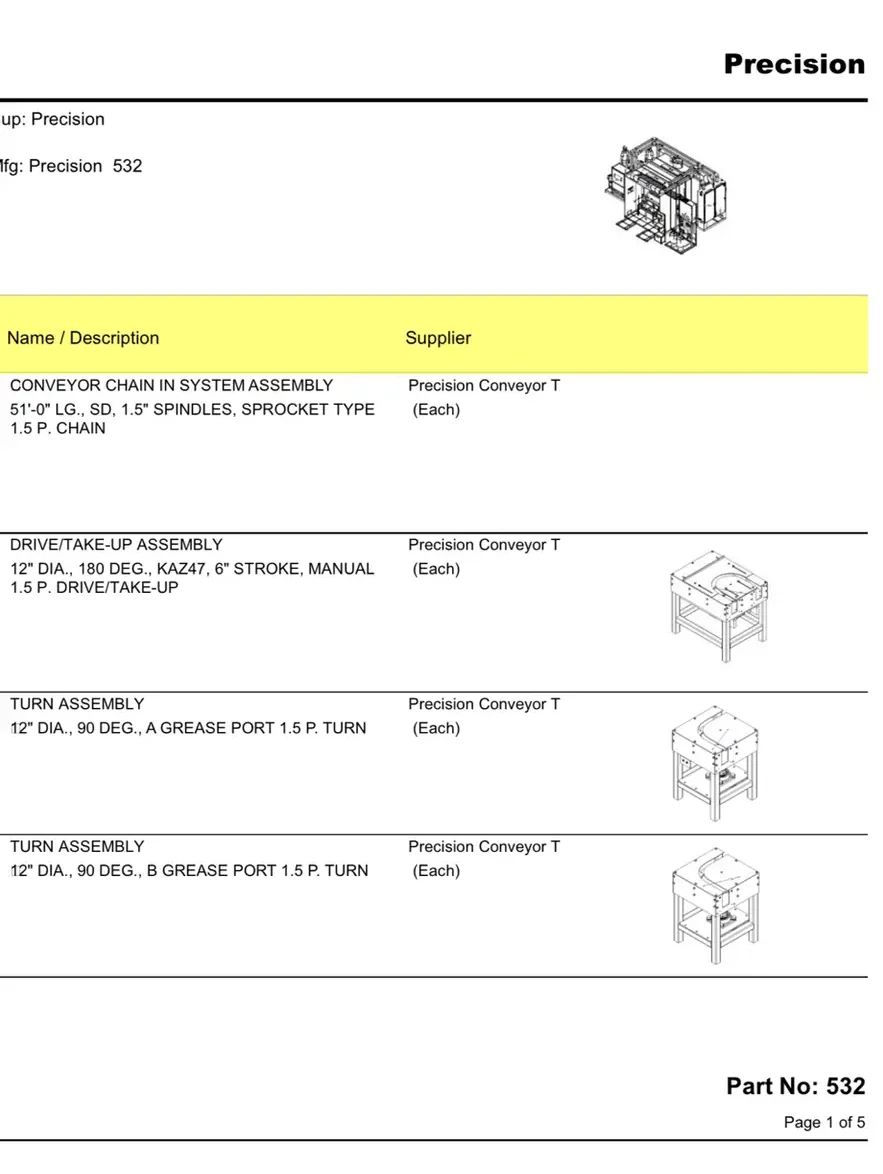
I’d wanted visual part identification for a while. When someone opens a quote or a BOM, I wanted them to see the part, not just read a vague description and guess. It didn’t need to be fancy—just a clean image pulled straight from our Autodesk Inventor 3D models.
Turns out, that’s all it took.
🧩 The New Integration
The new setup automatically generates and attaches product images from our Inventor 3D models to each part record in the database.
Public Sub DB_AttachPNGToPart(varPartAutoNumber As Variant)

On Error GoTo MyErrorHandler_Err

' Get the active document.
Dim invDoc As Document
Set invDoc = ThisApplication.ActiveDocument

' Iterate through the list of documents.
Dim pngFileName As String

 'get the built in inventor properties
Dim propsetBuiltIn As Inventor.PropertySet
Set propsetBuiltIn = invDoc.PropertySets.Item("Design Tracking Properties")

'get the built in inventor summary info
Dim propsetSummaryInfo As Inventor.PropertySet
Set propsetSummaryInfo = invDoc.PropertySets.Item("Inventor Summary Information")

'Get data to find visible workplanes
Dim oOccs As ComponentOccurrences
Set oOccs = invDoc.ComponentDefinition.Occurrences


'set variables and save STP file
Dim strDocOpenString As String
Dim strFileName As String
Dim strDocumentType As String
Dim bolSendToSupplier As Boolean
Dim strFileType As String
Dim strBasePath As String
Dim strFileExt As String
Dim strDocumentLocation As String

strDocumentType = "PCT Production PNG"
bolSendToSupplier = True
strFileType = "PNG"
strDocumentLocation = "Part Number Folder"

strBasePath = Left(invDoc.FullFileName, InStrRev(invDoc.FullFileName, "\"))
strFileName = GetProperty(propsetBuiltIn, "Part Number") & " Rev " & GetProperty(propsetSummaryInfo, "Revision Number")
strFileExt = ".png"

Dim strCurrentFileExt As String
strCurrentFileExt = Split(invDoc.FullFileName, ".")(UBound(Split(invDoc.FullFileName, ".")))

Select Case strCurrentFileExt
    Case Is = "dwg"
        GoTo ExitSub
    Case Is = "idw"
        GoTo ExitSub
    Case Else
End Select

'create file
pngFileName = strBasePath & strFileName & strFileExt

'go back to home view
ThisApplication.CommandManager.ControlDefinitions.Item("AppViewCubeHomeCmd").Execute

'Get the active view.
Dim oView As view
Set oView = ThisApplication.ActiveView

'configure view for export
oView.DisplayMode = DisplayModeEnum.kWireframeNoHiddenEdges
oView.ShowGroundReflections = False
oView.ShowGroundShadows = False
oView.ShowAmbientShadows = False
oView.ShowObjectShadows = False

ThisApplication.ColorSchemes.Item("Presentation").Activate 'this color scheme contains a white background

Dim camera As camera
Set camera = oView.camera

camera.Fit
camera.Apply

'Create a new NameValueMap Object
Dim oOptions As NameValueMap
Set oOptions = ThisApplication.TransientObjects.CreateNameValueMap

'oOptions.value("TransparentBackground") = True
Call oView.SaveAsBitmapWithOptions(pngFileName, 800, 0, oOptions)


'log newly created PNG into database
Dim rs As ADODB.Recordset
Set rs = New ADODB.Recordset

'Open query
'rs.Open (cnDB.Execute("qryACAD_TBUpdate"))
strDocOpenString = "SELECT tblPrecisionPartsDocuments.PartAutoNumber, tblPrecisionPartsDocuments.DocumentFileName, tblPrecisionPartsDocuments.DocumentFileType, " _
    & " tblPrecisionPartsDocuments.DocumentType , tblPrecisionPartsDocuments.SendToSupplier, tblPrecisionPartsDocuments.DocumentLocation, tblPrecisionPartsDocuments.RevisionLevel," _
    & " tblPrecisionPartsDocuments.CreatedBy , tblPrecisionPartsDocuments.CreatedDate, tblPrecisionPartsDocuments.RevisionLevel, tblPrecisionPartsDocuments.POAutoNumber, tblPrecisionPartsDocuments.AutoCreated" _
    & " FROM tblPrecisionPartsDocuments" _
    & " WHERE (((tblPrecisionPartsDocuments.PartAutoNumber)=" & varPartAutoNumber & ") AND ((tblPrecisionPartsDocuments.DocumentFileName)='" & strFileName & "') " _
    & " AND ((tblPrecisionPartsDocuments.DocumentFileType)='" & strFileType & "') AND ((tblPrecisionPartsDocuments.POAutoNumber) Is Null));"

rs.Open strDocOpenString, CreateSQLConnection, adOpenDynamic, adLockPessimistic
'Debug.Print strDocOpenString

If rs.EOF Then
    rs.AddNew
        rs.Fields("PartAutoNumber").value = varPartAutoNumber
        rs.Fields("DocumentFileName").value = strFileName
        rs.Fields("DocumentFileType").value = strFileType
        rs.Fields("DocumentType").value = strDocumentType
        rs.Fields("SendToSupplier").value = bolSendToSupplier
        rs.Fields("DocumentLocation").value = strDocumentLocation
        rs.Fields("RevisionLevel").value = GetProperty(propsetSummaryInfo, "Revision Number")
        rs.Fields("CreatedBy").value = fOSUserName()
        rs.Fields("CreatedDate").value = Now()
        rs.Fields("AutoCreated").value = True
    rs.Update
Else
    rs.Fields("DocumentFileName").value = strFileName
    rs.Fields("DocumentFileType").value = strFileType
    rs.Fields("DocumentType").value = strDocumentType
    rs.Fields("SendToSupplier").value = bolSendToSupplier
    rs.Fields("DocumentLocation").value = strDocumentLocation
    rs.Fields("RevisionLevel").value = GetProperty(propsetSummaryInfo, "Revision Number")
    rs.Fields("CreatedBy").value = fOSUserName()
    rs.Fields("CreatedDate").value = Now()
    rs.Fields("AutoCreated").value = True
    rs.Update
End If

If Not rs Is Nothing Then rs.Close: Set rs = Nothing
If CreateSQLConnection Is Nothing Then CreateSQLConnection.Close

'put the view back to default
'configure view for export
oView.DisplayMode = DisplayModeEnum.kShadedWithEdgesRendering
oView.ShowGroundReflections = False
oView.ShowGroundShadows = False
oView.ShowAmbientShadows = False
oView.ShowObjectShadows = False

ThisApplication.ColorSchemes.Item("Light").Activate 'this color scheme contains the standard background

camera.Fit
camera.Apply

MyErrorHandler_Err:
    Select Case Err.Number
    Case 0
        'Resume Next
    Case Is <> 0, 91, -2147467259
        If Not rs Is Nothing Then rs.Close: Set rs = Nothing
        If CreateSQLConnection Is Nothing Then CreateSQLConnection.Close
        MsgBox Err.Number & " " & Err.Description, vbOKOnly, "Error in DB_AttachSTPToPart"
    End Select

ExitSub:

End Sub
Those images now show up everywhere:
Quotes have thumbnails right next to line items Shipping docs include visual confirmation before anything leaves BOMs and inventory screens show exactly what’s sitting on the shelf
For new or less-experienced employees, it’s a huge improvement. No more guessing which bracket is which. No flipping through drawings. Just open the form and know exactly what you’re looking at.
⚙️ Why Access Still Works
People love to say Microsoft Access is outdated. I get it—it’s been around forever. But while everyone else rebuilds the same dashboards in ten different web apps, mine’s quietly automating half the company.
Access still does what most “modern” systems can’t: tie data, logic, and automation together in one fast, local package. With a little VBA, it talks to anything—PDFs, CAD, Excel, you name it.
No subscriptions. No API key drama. No “please wait while loading.” Just instant, reliable results.
What started years ago as a quoting database has grown into an operating backbone for the whole business. And it’s still evolving, one afternoon project at a time.
🧠 Lessons Learned
“Legacy” tools aren’t the problem—lack of creativity is. You don’t need new platforms; you need better ideas. Four hours of curiosity can save hundreds of hours later.
🏁 Closing Thought
“The real trick isn’t chasing new software—it’s making the tools you already have do new things.”
That’s been the story of my career, really. I just keep bending what’s in front of me until it works better than anyone expected.